conv refi
1

Review Loan Terms

  • Step 1 allows you to become familiar with the loan set-up
  • Ask yourself these questions:
    • LTV max per guidelines?
    • Does DTI have room to adjust loan amount if needed?
    • Does your DTI require all income listed to be used?
    • How many borrowers? Is borrower married? — Who needs to receive disclosures​?
    • R/T or Cash Out?
    • Review BCD
Detailed Steps
Review the Empower Loan Summary Screen to find the information bulleted below:
  • Borrower information
    • Number of borrowers/entities
    • Borrower/co-borrower names
    • Marital status
  • Loan Information
    • Loan program
    • Loan type
    • Loan purpose
    • Property type
    • Occupancy type
    • Interest rate
    • Appraisal waived or not waived
    • Loan amount
    • LTV
    • Lock expiration date
  • Pricing and Eligibility
    • Discount point/rebate %
  • Income and Housing Information
    • Escrows waived?
  • BCD (Business Card Directory)
    • LLO (mortgage banker)
    • Underwriter
      • Live UW or
      • melloDecision
2

Understanding Borrower Information

  • Review and understand your borrower’s information and expectations
  • Take note of the information from the sections below

Resources

Detailed Steps
The following sections will let you know what to look for in M4 or help you create a needs list to review with your borrower
  • Review Consumer Portal for outstanding document requests
  • Sales Notes  
    • Review for borrower expectations or important insight from the LLO
  • Section 1
    • Review for each borrower on the file:
      • Borrower Name
      • Marital Status
      • DOB
      • SSN
        • Take note of these as all must match the supporting documentation in the file
    • Current Address
      • A minimum of 2 years confirmed residency is required
      • Confirm length of residency with the borrower
    • Employment details
      • A minimum of 2 years confirmed employment history is required
      • Take note of current and previous income type for documentation purposes
        • Wage earner
        • Self-employed
        • Other Income
  • Section 2
    • Assets
      • Ask yourself if assets are needed on the file
        • Is the file short to close
        • Does the property type require assets
        • Does the program require assets
        • Does your AUS require assets
          • If yes to any of the above
            • Confirm the asset information in Empower is entered correctly
          • If no to any of the above
            • Remove the asset information from Empower completely
    • Liabilities
      • If there are any of the following, confirm with the borrower
        • Any omitted debts
        • Any items checked to be paid off other than the subject property mortgages
        • Any additional mortgages not being paid off
        • If any ‘Open’ AMEX/CC accounts
        • Payments (student loans calculated accurately, etc.)
  • Section 3
    • REO
      • Review for additional properties you may need to document
      • Is rental income listed for any property?
        • If yes, and needed to qualify
          • Take note for PITIA documentation needs
        • If yes, and not needed to qualify
          • Remove from the application
      • Are there any properties owned free and clear?
        • If yes, take note for PITIA documentation needs
  • Section 5
    • Declarations
      • For any questions answered YES
        • Confirm accuracy with the borrower
        • Document if needed
  • Section L​3
    • Mortgage Loan Information
      • Update Housing Expenses Present Field
        • For Subject Investment/Second home's
          • Confirm the total amount in this section matches the primary residence housing expenses
  • Section L​4
    • Review the Cash to/from borrower​
      • Take note of the general amount/expectations of cash to/from borrower to confirm on intro call
      • This amount will change, do not confirm the exact amount on intro call
3

Confirm Closing Date Accuracy​

  • Estimate a realistic closing date as other factors rely on an accurate date
  • Ask yourself these questions:
    • When is the lock expiration date?​
    • Are the current dates realistic?
    • What are borrower’s expectations?​

Resources

Detailed Steps
Before updating closing dates​:
  • Confirm occupancy
    • This affects rescission dates ​
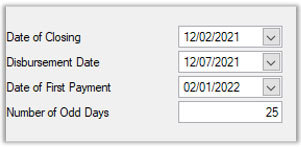
  • Navigate to the loan disclosure screen and use the rescission calendar to update the following dates:
    • Date of Closing ​
      • Date that documents are signed ​
    • Disbursement Date ​
      • Date the funds will be paid out or disbursed​
    • Date of First Payment ​
      • Always based off the date of closing ​
  • Sign-Skip-Pay​
4

Review M4 Docs & Update File

  • Ask yourself these questions as you review:
    • Is the document present?
    • If not, is it needed?
    • Is it accurate?
    • Does it satisfy?
    • Is it expired?
    • Does Empower need to be updated?
  • Update 1003 information with documentation from M4
    • Create a needs list of outstanding items
Detailed Steps
Use your notes from your pre-scrub to review M4
  • Current Mortgage Statement​
    • Review to see if your borrower is currently impounding their taxes and insurance
  • Fraud Report
    • Verify 1003 addresses
      • Matches USPS address on Fraud
      • 2-year Current/Previous Address(es) is accurate
    • Verify all required Loan Participants are updated
  • Asset Statements
    • Are assets needed?​
      • Yes, do your statements satisfy and balances match 1003?
      • No, remove from Empower, move statements to left
  • Title Report
      • Liens/Judgements/Encumbrances
      • Other Mortgages/Subordinations
      • UCC/Solar
  • Flood Cert
    • If property is in a flood zone
      • Page 2 of cert signed by the borrower
      • Flood insurance will be required
  • Insurance
    • Confirm all initial dec pages/Agent contact numbers are in the file
      • Update escrow screen
      • If not in the file, request from the borrower
  • Appraisal
    • If appraisal is needed review dashboard for appointment / report details ​
  • Additional REO
    • All Non-Subject REO have PITIA documented
      • If not in the file, request from the borrower
5

Update Fees Screen

  • Update the Fees Screen for each invoice/fee amounts due in the file:
    • Title invoice
    • Appraisal invoice (if applicable)
    • HOA cert invoice (if applicable)
    • Subordination invoice (if applicable)
    • Taxes & insurance due before the 1st payment date

Resources

Detailed Steps
Utilize invoices in M4 docs to update Fees Screen​
  • Update the following fields in the Fees Screen:
    • HUD description
    • Borrower Chg
    • Paid To
6

Balance POC Items

  • POC items must be entered correctly so section L4 matches the CD screen
    • Fees Screen
    • Section 2B

Resources

Detailed Steps
Verify POC items/amount in the Credit Card History screen​
  • Check POC box in Fees Screen
  • Map payoff to CD  ​
    • “Cash To/From Borrower” matches L4 & CD screens​
7

Re-Run the AUS

  • Confirm results are Approve/Eligible
  • If PIW or ACE confirm waiver verbiage is still on newest AUS​

Resources

8

Review Conditions Portal

  • Read each condition carefully—it states exactly what is needed to satisfy the condition  
  • The key to understanding your conditions is understanding the AUS feedback
  • Add outstanding items to needs list

Resources

Detailed Steps
  • Open Conditions Portal
    • Read all Prior to Doc conditions
    • (melloNOW loans only) Review DataVerify condition(s) to determine if partial UW is needed
    9

    Intro Call

    • Use the intro call checklist for intro call
    • Set urgency to return items needed
    • Record and upload intro call

    Resources

    Detailed Steps
    • Complete the intro call
      • Upload recorded call to M4Docs
    10

    Re-Disclose LE (If Applicable)

    • Verify your LE/CD indicators are all green

    Resources

    Detailed Steps
    11

    Update Your File

    • Update 1003 if there is any NEW information obtained from your borrower
    Detailed Steps
    If there is any NEW information from your borrower that is discovered after the intro call
    • Property Type
    • Confirm REO on 1003
      • Linked correctly
      • All properties added
    • Add Previous Employment
    • Add Previous Address
    • Add NBS/NBE
      12

      Review Needs List/PTDs for 3rd Party Orders

      • Ensure documentation is present for LDValet
      • Initiate the remaining orders for your file (if needed):
        • Title supplements
        • Credit supplements
      Detailed Steps
      13

      Upload Checklist/Partial UW

      Detailed Steps
      • (melloNOW loans only) Does the file need to go to UW for Partial UW?
        • Yes
          • Complete Partial UW all requirements on Checklist
          • Add notes and request Partial UW from manager
        • If No, no action required, continue processing loan, live UW assigned at Final UW submission
      • Complete Processing Checklist
        • Upload to M4Docs Processing Checklist

      Preparing for Final Approval

      1

      Confirm Title is Clear to Close

      • Title issues are resolved
      • Title report is updated and accurate
      • Verify Trust or POA requirements (if applicable)
      Detailed Steps
      • Confirm all title conditions are cleared
      • All mortgages, liens, judgements, and encumbrances are addressed​
      • Empower loan amount matches the Title Report and Title Invoice​
      • Empower vesting matches Title Report, Grant Deed, Quit Claim Deed
      • Confirm Trust or POA requirements are met (if applicable)
      2

      Verify All Conditions Are Satisfied

      • Ensure all necessary documents are uploaded and linked to conditions
      Detailed Steps
      • Verify all needed documents are uploaded to M4 ​
        • Ensure documents are linked to conditions​
        • If Appraisal Report is pending, see Final Approval Pending Appraisal Procedures
        • If no document is linked, must enter note in conditions portal why​
        • Move duplicates and unneeded documents to the left side of M4docs​
      3

      Confirm Closing Date Accuracy

      • Update closing date if needed
        • Did you roll into a new month?
        • Have escrows been paid or become due
      Detailed Steps
      Confirm closing date accuracy​
      • Adjust the following​ (if needed)
        • Closing Date​
        • Disbursement Date​
        • First Payment Date is correct (must skip the month after the Closing Date)​
      4

      Calculate Payoff and Update Empower

      • Recalculate payoff based on new information
        • The borrower may have made a new payment
        • Closing date is more realistic

      Resources

      Detailed Steps
      5

      Confirm Escrow Account Input Screen Accuracy

      • First Payment Date and payment made by borrower may have changed since 1st input
      Detailed Steps
      Review and confirm the accuracy of the following​
      • Confirm First Payment Date​
        • Verify if installments are due prior to First Payment​
        • Verify if borrower has made any additional payments
        • Verify MI due date matches First Payment Date (if applicable)
      6

      Confirm Fees Screen Accuracy

      • Rebalance L4 to CD Screen
        • This information will be given to obtain the ALTA and must be accurate
      Detailed Steps
      7

      Request ALTA

      • Request ALTA from Escrow Officer

      Resources

      Detailed Steps
      • Generate Fee Summary and request ALTA from escrow officer
      8

      Update Screens Once ALTA is Received

      • Update Fees Screen to match ALTA​
      • Ensure ALTA, Closing Disclosure screen, and Section L4 screens match

      Resources

      Detailed Steps
      Upon receiving ALTA from title review Empower and update the following​
      • Update the Empower HUD# 1100/1200s fees from the ALTA
      • Map payoff to CD from URLA Tools​
      • Ensure Closing Disclosure screen and Section L4 screens match​
      9

      Re-Run AUS

      • AUS must be re-run to capture all changes made
      Detailed Steps
      Once all screens are updated and balanced, re-run the AUS​
      • Confirm results are Approve/Eligible (DU) or Accept/Eligible (LPA)​
      • If PIW or ACE, confirm the waiver verbiage is still present on newest AUS​
      10

      Send Your Initial CD

      • Initial CD should only be sent after:
        • The file is balanced
        • The LE has been redisclosed if needed
        • The file is ready for submission to Final Approval

      Resources

      Detailed Steps
      Navigate to LE/CD Validation Screen and send Initial CD to borrower​
      • Compliance Report will automatically run while sending a CD
        • Refer to the Mavent Guide if the Docu Tech/Mavent Validation Results show any Fail or Error notes for Mavent under the Status column
      • Advise all parties to eConsent to CD same day​
      • CD Call to the borrower – must record and upload to M4docs​
      11

      Submit to Underwriting for Final Review

      • LOCK/LE/FULL indicators are green
      • Push to underwriting

      Resources

      Detailed Steps
      Complete the following steps to submit the file to the underwriting queue​
      • LOCK/LE/FULL indicators are green​
        • Must have green pass validation​
        • If yellow or red, clear validations​
      • Retail Work Process Tree Send to Destination Underwriting Final Approval​

      Docs & Closing Procedures

      1

      Closing Call (Post Final Approval)

      • Closing call will prepare your borrower for the following:
        • Confirming loan details
        • Final cash to/from borrower
        • Signing appointment
        • Notary expectations
        • Next steps

      Resources

      Detailed Steps
      Once Final Approval is obtained, complete the Closing Call with the borrower​
      2

      Schedule Signing

      • Schedule signing in Empower

      Resources

      Detailed Steps
      After completing closing call with the borrower​
      • Schedule Signing
        • Signing is scheduled 48 hours from doc order submission
        • If signing occurs within 48 hours, this requires rush request
      3

      Prep & Send Final CD

      • If any changes made to closing date, send new CD
      Detailed Steps
      • Update closing date in loan disclosure screen
      • Send new CD to borrower
      • Call borrower to review updates​
        • Remind borrower to eConsent
      4

      Prepare and Request Closing Docs

      Resources

      Detailed Steps
      Processors will complete all sections of the checklist
      • Signing Request
      • VOE
      • Invoices
      • Payoff
      • Insurance/Taxes
      • State Specific
      • Closing Call
      • Final Steps
      • Notes (if applicable)
      Review Docs Ordered Training for the following events
      • Review Suspended
      • Review Re-submission
      5

      Docs Out

      • Closer has sent doc package to the settlement agent
      • Processor emailed confirmation docs were sent
      6

      Docs Back

      • Closer will review the signed docs for completeness
        • If no items are missing and/or needed to fund closer will send “No Action Needed” email to the Processor
      Detailed Steps
      Review Docs Ordered Training for the following events
      • Redraw
        • Full
        • Partial
      7

      Funded

      • Thank your borrower for their business
      Detailed Steps
      On the same day as funding​
      • Call the borrower and thank them for their business​
      fha refi
      1

      Review Loan Terms

      • Step 1 allows you to become familiar with the loan set-up
      • Ask yourself these questions:
        • LTV max per guidelines?
        • Does DTI have room to adjust loan amount if needed?
        • Does your DTI require all income listed to be used?
        • How many borrowers? Is borrower married? — Who needs to receive disclosures​?
        • R/T or Cash Out?
        • Review BCD
      Detailed Steps
      Review the Empower Loan Summary Screen to find the information bulleted below:
      • Borrower information
        • Number of borrowers/entities
        • Borrower/co-borrower names
        • Marital status
      • Loan Information
        • Loan program
        • Loan type
        • Loan purpose
        • Property type
        • Occupancy type
        • Interest rate
        • Appraisal waived or not waived
        • Loan amount
        • LTV
        • Lock expiration date
      • Pricing and Eligibility
        • Discount point/rebate %
      • Income and Housing Information
        • Escrows waived?
      • BCD (Business Card Directory)
        • LLO (mortgage banker)
        • Underwriter
          • Live UW or
          • melloDecision
      2

      Understanding Borrower Information

      • Review and understand your borrower’s information and expectations
      • Take note of the information from the sections below

      Resources

      Detailed Steps
      The following sections will let you know what to look for in M4 or help you create a needs list to review with your borrower
      • Review Consumer Portal for outstanding document requests
      • Sales Notes  
        • Review for borrower expectations or important insight from the LLO
      • Section 1
        • Review for each borrower on the file:
          • Borrower Name
          • Marital Status
          • DOB
          • SSN
            • Take note of these as all must match the supporting documentation in the file
        • Current Address
          • A minimum of 2 years confirmed residency is required
          • Confirm length of residency with the borrower
        • Employment details
          • A minimum of 2 years confirmed employment history is required
          • Take note of current and previous income type for documentation purposes
            • Wage earner
            • Self-employed
            • Other Income
      • Section 2
        • Assets
          • Ask yourself if assets are needed on the file
            • Is the file short to close
            • Does the property type require assets
            • Does the program require assets
            • Does your AUS require assets
              • If yes to any of the above
                • Confirm the asset information in Empower is entered correctly
              • If no to any of the above
                • Remove the asset information from Empower completely
        • Liabilities
          • If there are any of the following, confirm with the borrower
            • Any omitted debts
            • Any items checked to be paid off other than the subject property mortgages
            • Any additional mortgages not being paid off
            • If any ‘Open’ AMEX/CC accounts
            • Payments (student loans calculated accurately, etc.)
      • Section 3
        • REO
          • Review for additional properties you may need to document
          • Is rental income listed for any property?
            • If yes, and needed to qualify
              • Take note for PITIA documentation needs
            • If yes, and not needed to qualify
              • Remove from the application
          • Are there any properties owned free and clear?
            • If yes, take note for PITIA documentation needs
      • Section 5
        • Declarations
          • For any questions answered YES
            • Confirm accuracy with the borrower
            • Document if needed
      • Section L​3
        • Mortgage Loan Information
          • Update Housing Expenses Present Field
            • For Subject Investment/Second home's
              • Confirm the total amount in this section matches the primary residence housing expenses
      • Section L​4
        • Review the Cash to/from borrower​
          • Take note of the general amount/expectations of cash to/from borrower to confirm on intro call
          • This amount will change, do not confirm the exact amount on intro call
      3

      Confirm Closing Date Accuracy​

      • Estimate a realistic closing date as other factors rely on an accurate date
      • Ask yourself these questions:
        • When is the lock expiration date?​
        • Are the current dates realistic?
        • What are borrower’s expectations?​

      Resources

      Detailed Steps
      Before updating closing dates​:
      • Confirm occupancy
        • This affects rescission dates ​
      • Navigate to the loan disclosure screen and use the rescission calendar to update the following dates:
        • Date of Closing ​
          • Date that documents are signed ​
        • Disbursement Date ​
          • Date the funds will be paid out or disbursed​
        • Date of First Payment ​
          • Always based off the date of closing ​
      • Sign-Skip-Pay​
      4

      Review M4 Docs & Update File

      • Ask yourself these questions as you review:
        • Is the document present?
        • If not, is it needed?
        • Is it accurate?
        • Does it satisfy?
        • Is it expired?
        • Does Empower need to be updated?
      • Update 1003 information with documentation from M4
        • Create a needs list of outstanding items
      Detailed Steps
      +Full Doc
      +Credit Qualifying Streamline

      General

      Use your notes from your pre-scrub to review M4
      • Current Mortgage Statement​
        • Review to see if your borrower is currently impounding their taxes and insurance
      • Fraud Report
        • Verify 1003 addresses
          • Matches USPS address on Fraud
          • 2-year Current/Previous Address(es) is accurate
        • Verify all required Loan Participants are updated
      • Asset Statements
        • Are assets needed?​
          • Yes, do your statements satisfy and balances match 1003?
          • No, remove from Empower, move statements to left
      • Title Report
          • Liens/Judgements/Encumbrances
          • Other Mortgages/Subordinations
          • UCC/Solar
      • Flood Cert
        • If property is in a flood zone
          • Page 2 of cert signed by the borrower
          • Flood insurance will be required
      • Insurance
        • Confirm all initial dec pages/Agent contact numbers are in the file
          • Update escrow screen
          • If not in the file, request from the borrower
      • Appraisal
        • If appraisal is needed review dashboard for appointment / report details ​
      • Additional REO
        • All Non-Subject REO have PITIA documented
          • If not in the file, request from the borrower
      • 92900-A– Pages 1 & 2 must be dated prior to the case # assignment date
        • Page 1 Part II:Borrower's signature & date
        • Page 2
      • Initial 1003
        • Must be fully executed/signed by Borrower & LLO
      • Case Assignment:
        • Verify it is uploaded in M4 and ensure the following:​
          • Borrower’s name matches title exactly​
          • Address matches USPS
          • Update accordingly on FHA Connection if name(s) and/or address do not match​  
          • If changes are made, check Case Query after 24 hours​  
      • Case Assignment:
        • Verify it is uploaded in M4 and ensure the following:​
          • Properties owned for less than 1 year c/o is not permitted unless inherited​
          • Refer to FHA lending guide for seasoning requirements on loans in forbearance ​
          • STREAMLINES: Borrower must have made at least six payments, at least six full months from the first payment due date, and at least 210 days must have passed from the closing date of the mortgage being refinanced
      • Upload CAIVRS and verify there are no open claims​
        • If CAIVRS indicates an open claim, provide borrower the listed phone number to resolve​

      Full Doc & Credit Qualifying Streamline Only

      • Non Borrowing spouse’s credit report ​
        • Required on community property states (AZ, CA, ID, LA, NV, NM, TX, WA, WI)
          • NBS debts must be included in liabilities  
          • Send file to LLO if NBS credit or liabilities is missing  
      • Income specifics:
        • Nontaxable income may only be grossed up 15% (not 25%)​
        • Non-occupying co-borrower income is not permitted on cash out refinances
      • Review AUS findings for eligibility
      5

      Update Fees Screen

      • Update the Fees Screen for each invoice/fee amounts due in the file:
        • Title invoice
        • Appraisal invoice (if applicable)
        • HOA cert invoice (if applicable)
        • Subordination invoice (if applicable)
        • Taxes & insurance due before the 1st payment date

      Resources

      Detailed Steps
      Utilize invoices in M4 docs to update Fees Screen​
      • Update the following fields in the Fees Screen:
        • HUD description
        • Borrower Chg
        • Paid To
      6

      Balance POC Items

      • POC items must be entered correctly so section L4 matches the CD screen
        • Fees Screen
        • Section 2B

      Resources

      Detailed Steps
      Verify POC items/amount in the Credit Card History screen​
      • Check POC box in Fees Screen
      • Map payoff to CD  ​
        • “Cash To/From Borrower” matches L4 & CD screens​
      7

      Re-Run the AUS (Full Doc Only)

      • Confirm results are Approve/Eligible
        • If Refer, confirm manual UW is approved

      Resources

      8

      Review Conditions Portal

      • Read each condition carefully—it states exactly what is needed to satisfy the condition  
      • The key to understanding your conditions is understanding the AUS feedback
      • Add outstanding items to needs list

      Resources

      Detailed Steps
      • Open Conditions Portal
        • Read all Prior to Doc conditions
        • (melloNOW loans only) Review DataVerify condition(s) to determine if partial UW is needed
        9

        Intro Call

        • Use the intro call checklist for intro call
        • Set urgency to return items needed
        • Record and upload intro call

        Resources

        Detailed Steps
        10

        Re-Disclose LE (If Applicable)

        • Verify your LE/CD indicators are all green

        Resources

        Detailed Steps
        11

        Update Your File

        • Update 1003 if there is any NEW information obtained from your borrower
        Detailed Steps
        If there is any NEW information from your borrower that is discovered after the intro call
        • Property Type
        • Confirm REO on 1003
          • Linked correctly
          • All properties added
        • Add Previous Employment
        • Add Previous Address
        • Add NBS/NBE
          12

          Review Needs List/PTDs for 3rd Party Orders

          • Ensure documentation is present for LDValet
          • Initiate the remaining orders for your file (if needed):
            • Title supplements
            • Credit supplements
          Detailed Steps
          13

          Upload Checklist/Partial UW

          • Assess if partial UW is required
          • Complete Processing Checklist
          Detailed Steps
          • (melloNOW loans only) Does the file need to go to UW for Partial UW?
            • Yes
              • Complete Partial UW all requirements on Checklist
              • Add notes and request Partial UW from manager
            • If No, no action required, continue processing loan, live UW assigned at Final UW submission
          • Complete Processing Checklist
            • Upload to M4Docs Processing Checklist

          Preparing for Final Approval

          1

          Confirm Title is Clear to Close

          • Title issues are resolved
          • Title report is updated and accurate
          • Verify Trust or POA requirements (if applicable)
          Detailed Steps
          • Confirm all title conditions are cleared
          • All mortgages, liens, judgements, and encumbrances are addressed​
          • Empower loan amount matches the Title Report and Title Invoice​
          • Empower vesting matches Title Report, Grant Deed, Quit Claim Deed
          • Confirm Trust or POA requirements are met (if applicable)
          2

          Verify All Conditions Are Satisfied

          • Ensure all necessary documents are uploaded and linked to conditions
          Detailed Steps
          +FHA to FHA Refinance

          General

          • Verify all needed documents are uploaded to M4 ​
            • Ensure documents are linked to conditions​
            • If Appraisal Report is pending, see Final Approval Pending Appraisal Procedures
            • If no document is linked, must enter note in conditions portal why​
            • Move duplicates and unneeded documents to the left side of M4docs​
          • Enter Case Assignment date in Loan Disclosure screen in Empower

          FHA to FHA Refinance Only

          • Input Original Endorsement Date from Refinance Authorization​ in Loan Disclosure screen
            • *DO NOT calculate loan amount here​
          3

          Confirm Closing Date Accuracy

          • Update closing date if needed
            • Did you roll into a new month?
            • Have escrows been paid or become due
          Detailed Steps
          Confirm closing date accuracy​
          • Adjust the following​ (if needed)
            • Closing Date​
            • Disbursement Date​
            • First Payment Date is correct (must skip the month after the Closing Date)​
          4

          Calculate Payoff and Update Empower

          • Recalculate payoff based on new information
            • The borrower may have made a new payment
            • Closing date is more realistic

          Resources

          Detailed Steps
          5

          Confirm Escrow Account Input Screen Accuracy

          • First Payment Date and payment made by borrower may have changed since 1st input
          Detailed Steps
          Review and confirm the accuracy of the following​
          • Confirm First Payment Date​
            • Verify if installments are due prior to First Payment​
            • Verify if borrower has made any additional payments
            • Verify MI due date matches First Payment Date (if applicable)
          • Escrow account input screen
            • Verify MI due date matches first payment date, 12 disbursements and 'exclude from calculations' box is unchecked
          6

          Confirm Fees Screen Accuracy

          • Rebalance L4 to CD Screen
            • This information will be given to obtain the ALTA and must be accurate
          Detailed Steps
          7

          Request ALTA

          • Request ALTA from Escrow Officer

          Resources

          Detailed Steps
          • Generate Fee Summary and request ALTA from escrow officer
          8

          Update Screens Once ALTA is Received

          • Update Fees Screen to match ALTA​
          • Ensure ALTA, Closing Disclosure screen, and Section L4 screens match

          Resources

          Detailed Steps
          Upon receiving ALTA from title review Empower and update the following​
          • Update the Empower HUD# 1100/1200s fees from the ALTA
          • Map payoff to CD from URLA Tools​
          • Ensure Closing Disclosure screen and Section L4 screens match​
          9

          Re-Run AUS (Full Doc Only)

          • AUS must be re-run to capture all changes made
          Detailed Steps
          Once all screens are updated and balanced, re-run the AUS​
          • Confirm results are Approve/Eligible (DU) or Accept/Eligible (LPA)​
          10

          Send Your Initial CD

          • Initial CD should only be sent after:
            • The file is balanced
            • The LE has been redisclosed if needed
            • The file is ready for submission to Final Approval

          Resources

          Detailed Steps
          Navigate to LE/CD Validation Screen and send Initial CD to borrower​
          • Compliance Report will automatically run while sending a CD
            • Refer to the Mavent Guide if the Docu Tech/Mavent Validation Results show any Fail or Error notes for Mavent under the Status column
          • Advise all parties to eConsent to CD same day​
          • CD Call to the borrower – must record and upload to M4docs​
          11

          Submit to Underwriting for Final Review

          • LOCK/LE/FULL indicators are green
          • Push to underwriting

          Resources

          Detailed Steps
          Complete the following steps to submit the file to the underwriting queue​
          • LOCK/LE/FULL indicators are green​
            • Must have green pass validation​
            • If yellow or red, clear validations​
          • Retail Work Process Tree Send to Destination Underwriting Final Approval​

          Docs & Closing Procedures

          1

          Closing Call (Post Final Approval)

          • Closing call will prepare your borrower for the following:
            • Confirming loan details
            • Final cash to/from borrower
            • Signing appointment
            • Notary expectations
            • Next steps

          Resources

          Detailed Steps
          Once Final Approval is obtained, complete the Closing Call with the borrower​
          2

          Schedule Signing

          • Schedule signing in Empower

          Resources

          Detailed Steps
          After completing closing call with the borrower​
          • Schedule Signing
            • Signing is scheduled 48 hours from doc order submission
            • If signing occurs within 48 hours, this requires rush request
          3

          Prep & Send Final CD

          • If any changes made to closing date, send new CD
          Detailed Steps
          • Update closing date in loan disclosure screen
          • Send new CD to borrower
          • Call borrower to review updates​
            • Remind borrower to eConsent
          4

          Prepare and Request Closing Docs

          Resources

          Detailed Steps
          Processors will complete all sections of the checklist
          • Signing Request
          • VOE
          • Invoices
          • Payoff
          • Insurance/Taxes
          • State Specific
          • Closing Call
          • Final Steps
          • Notes (if applicable)
          Review Docs Ordered Training for the following events
          • Review Suspended
          • Review Re-submission
          5

          Docs Out

          • Closer has sent doc package to the settlement agent
          • Processor emailed confirmation docs were sent
          6

          Docs Back

          • Closer will review the signed docs for completeness
            • If no items are missing and/or needed to fund closer will send “No Action Needed” email to the Processor
          Detailed Steps
          Review Docs Ordered Training for the following events
          • Redraw
            • Full
            • Partial
          7

          Funded

          • Thank your borrower for their business
          Detailed Steps
          On the same day as funding​
          • Call the borrower and thank them for their business​
          va refi
          1

          Review Loan Terms

          • Step 1 allows you to become familiar with the loan set-up
          • Ask yourself these questions:
            • LTV max per guidelines?
            • Does DTI have room to adjust loan amount if needed?
            • Does your DTI require all income listed to be used?
            • How many borrowers? Is borrower married? — Who needs to receive disclosures​?
            • R/T or Cash Out?
            • Review BCD
          Detailed Steps
          Review the Empower Loan Summary Screen to find the information bulleted below:
          • Borrower information
            • Number of borrowers/entities
            • Borrower/co-borrower names
            • Marital status
          • Loan Information
            • Loan program
            • Loan type
            • Loan purpose
            • Property type
            • Occupancy type
            • Interest rate
            • Appraisal waived or not waived
            • Loan amount
            • LTV
            • Lock expiration date
          • Pricing and Eligibility
            • Discount point/rebate %
          • Income and Housing Information
            • Escrows waived?
          • BCD (Business Card Directory)
            • LLO (mortgage banker)
            • Underwriter
              • Live UW or
              • melloDecision
          2

          Understanding Borrower Information

          • Review and understand your borrower’s information and expectations
          • Take note of the information from the sections below

          Resources

          Detailed Steps
          The following sections will let you know what to look for in M4 or help you create a needs list to review with your borrower
          • Review Consumer Portal for outstanding document requests
          • Sales Notes  
            • Review for borrower expectations or important insight from the LLO
          • Section 1
            • Review for each borrower on the file:
              • Borrower Name
              • Marital Status
              • DOB
              • SSN
                • Take note of these as all must match the supporting documentation in the file
            • Current Address
              • A minimum of 2 years confirmed residency is required
              • Confirm length of residency with the borrower
            • Employment details
              • A minimum of 2 years confirmed employment history is required
              • Take note of current and previous income type for documentation purposes
                • Wage earner
                • Self-employed
                • Other Income
          • Section 2
            • Assets
              • Ask yourself if assets are needed on the file
                • Is the file short to close
                • Does the property type require assets
                • Does the program require assets
                • Does your AUS require assets
                  • If yes to any of the above
                    • Confirm the asset information in Empower is entered correctly
                  • If no to any of the above
                    • Remove the asset information from Empower completely
            • Liabilities
              • If there are any of the following, confirm with the borrower
                • Any omitted debts
                • Any items checked to be paid off other than the subject property mortgages
                • Any additional mortgages not being paid off
                • If any ‘Open’ AMEX/CC accounts
                • Payments (student loans calculated accurately, etc.)
          • Section 3
            • REO
              • Review for additional properties you may need to document
              • Is rental income listed for any property?
                • If yes, and needed to qualify
                  • Take note for PITIA documentation needs
                • If yes, and not needed to qualify
                  • Remove from the application
              • Are there any properties owned free and clear?
                • If yes, take note for PITIA documentation needs
          • Section 5
            • Declarations
              • For any questions answered YES
                • Confirm accuracy with the borrower
                • Document if needed
          • Section L​3
            • Mortgage Loan Information
              • Update Housing Expenses Present Field
                • For Subject Investment/Second home's
                  • Confirm the total amount in this section matches the primary residence housing expenses
          • Section L​4
            • Review the Cash to/from borrower​
              • Take note of the general amount/expectations of cash to/from borrower to confirm on intro call
              • This amount will change, do not confirm the exact amount on intro call
          3

          Confirm Closing Date Accuracy​

          • Estimate a realistic closing date as other factors rely on an accurate date
          • Ask yourself these questions:
            • When is the lock expiration date?​
            • Are the current dates realistic?
            • What are borrower’s expectations?​

          Resources

          Detailed Steps
          Before updating closing dates​:
          • Confirm occupancy
            • This affects rescission dates ​
          • Navigate to the loan disclosure screen and use the rescission calendar to update the following dates:
            • Date of Closing ​
              • Date that documents are signed ​
            • Disbursement Date ​
              • Date the funds will be paid out or disbursed​
            • Date of First Payment ​
              • Always based off the date of closing ​
          • Sign-Skip-Pay​
          4

          Review M4 Docs & Update File

          • Ask yourself these questions as you review:
            • Is the document present?
            • If not, is it needed?
            • Is it accurate?
            • Does it satisfy?
            • Is it expired?
            • Does Empower need to be updated?
          • Update 1003 information with documentation from M4
            • Create a needs list of outstanding items
          Detailed Steps
          +Full Doc Only

          General

          Use your notes from your pre-scrub to review M4
          • Current Mortgage Statement​
            • Review to see if your borrower is currently impounding their taxes and insurance
          • Fraud Report
            • Verify 1003 addresses
              • Matches USPS address on Fraud
              • 2-year Current/Previous Address(es) is accurate
            • Verify all required Loan Participants are updated
          • Asset Statements
            • Are assets needed?​
              • Yes, do your statements satisfy and balances match 1003?
              • No, remove from Empower, move statements to left
          • Title Report
              • Liens/Judgements/Encumbrances
              • Other Mortgages/Subordinations
              • UCC/Solar
          • Flood Cert
            • If property is in a flood zone
              • Page 2 of cert signed by the borrower
              • Flood insurance will be required
          • Insurance
            • Confirm all initial dec pages/Agent contact numbers are in the file
              • Update escrow screen
              • If not in the file, request from the borrower
          • Appraisal
            • If appraisal is needed review dashboard for appointment / report details ​
          • Additional REO
            • All Non-Subject REO have PITIA documented
              • If not in the file, request from the borrower
          • Initial 1003
            • Verify all pages signed/dated
          • Review COE for Entitlement/Conditions/VAFF Exempt Status
            • If COE is not in M4, look up COE request status on WebLGY
            • If status is “Pending” see if correspondence from VA was uploaded
            • VA IRRRL: COE not required, review VA – Funding Fee Status
          • Loan meets guidelines
            • VA NTB Guidelines & VA Seasoning requirements​
              • NTB is disclosed within 3 days of application and signed by the borrower(s) prior to Final Approval​  

          Full Doc Only

          • Non Borrowing spouse's credit report
            • Required on community property states (AZ, CA, ID, LA, NV, NM, TX, WA, WI)
              • NBS debts must be included in liabilities  
              • Send file to LLO if NBS credit or liabilities is missing  
          5

          Update Fees Screen

          • Update the Fees Screen for each invoice/fee amounts due in the file:
            • Title invoice
            • Appraisal invoice (if applicable)
            • HOA cert invoice (if applicable)
            • Subordination invoice (if applicable)
            • Termite invoice (if applicable)
            • Taxes & insurance due before the 1st payment date

          Resources

          Detailed Steps
          Utilize invoices in M4 docs to update Fees Screen​
          • Update the following fields in the Fees Screen:
            • HUD description
            • Borrower Chg
            • Paid To
          6

          Balance POC Items

          • POC items must be entered correctly so section L4 matches the CD screen
            • Fees Screen
            • Section 2B

          Resources

          Detailed Steps
          Verify POC items/amount in the Credit Card History screen​
          • Check POC box in Fees Screen
          • Map payoff to CD  ​
            • “Cash To/From Borrower” matches L4 & CD screens​
          7

          Re-Run the AUS (Full Doc Only)

          • Confirm results are Approve/Eligible
            • If Refer, confirm manual UW is approved

          Resources

          8

          Review Conditions Portal

          • Read each condition carefully—it states exactly what is needed to satisfy the condition  
          • The key to understanding your conditions is understanding the AUS feedback
          • Add outstanding items to needs list

          Resources

          Detailed Steps
          • Open Conditions Portal
            • Read all Prior to Doc conditions
            • (melloNOW loans only) Review DataVerify condition(s) to determine if partial UW is needed
            9

            Intro Call

            • Use the intro call checklist for intro call
            • Set urgency to return items needed
            • Record and upload intro call

            Resources

            Detailed Steps
            +Full Doc Only

            General

            Full Doc Only

            • Has the borrower ever had a VA loan?​
              • If yes, is it on the current property? (affects question #23 on Form 1802a)​
            • If COE is not initiated, request borrower to provide the Proof of Service documents mentioned in correspondence from VA. (If applicable)​
            • Has the appraiser called? Explain NOV process:​
              • Appraiser will be assigned by VA​
              • SAR Appraisal reviewer will issue the NOV to Borrower, Processor & UW for any conditions needed​
            • Is property connected to city water or private well?
              • SAR Appraisal reviewer will issue the NOV to Borrower, Processor & UW for any conditions needed​
            • If property is in a termite state, processor may order through Terminix
            • LOE for derogatory credit​
              • On Refer/Eligible/manually underwritten files​
            • Verify marital status and any Non-Borrowing Spouses​
              • If community state, Non-borrowing spouse credit is required​
            • Confirm total # of household members and their age(s).​
              • Update 1003 if incorrect​
            • VA – Child Care Statement ​
              • Confirm with borrower if they pay any child care expense? ​
              • If yes, add to liability screen to include in DTI​
            • Verification of VA Benefits Questions:​
              • Has the borrower filed a claim for VA Disability Benefits prior to Discharge from Active Duty? ​
              • Has the borrower had a VA benefit-related indebtedness?​
            • Complete the intro call
              • Upload recorded call to M4Docs
            10

            Re-Disclose LE (If Applicable)

            • Verify your LE/CD indicators are all green

            Resources

            Detailed Steps
            11

            Update Your File

            • Update 1003 if there is any NEW information obtained from your borrower
            Detailed Steps
            If there is any NEW information from your borrower that is discovered after the intro call
            • Property Type
            • Confirm REO on 1003
              • Linked correctly
              • All properties added
            • Add Previous Employment
            • Add Previous Address
            • Add NBS/NBE
              12

              Review Needs List/PTDs for 3rd Party Orders

              • Ensure documentation is present for LDValet
              • Initiate the remaining orders for your file (if needed):
                • Title supplements
                • Credit supplements
              Detailed Steps
              13

              Upload Checklist/Partial UW

              • Assess if partial UW is required
              • Complete Processing Checklist

              Preparing for Final Approval

              1

              Confirm Title is Clear to Close

              • Title issues are resolved
              • Title report is updated and accurate
              • Verify Trust or POA requirements (if applicable)
              Detailed Steps
              • Confirm all title conditions are cleared
              • All mortgages, liens, judgements, and encumbrances are addressed​
              • Empower loan amount matches the Title Report and Title Invoice​
              • Empower vesting matches Title Report, Grant Deed, Quit Claim Deed
              • Confirm Trust or POA requirements are met (if applicable)
              2

              Verify All Conditions Are Satisfied

              • Ensure all necessary documents are uploaded and linked to conditions
              Detailed Steps
              +Full Doc Only

              General

              • Verify all needed documents are uploaded to M4 ​
                • Ensure documents are linked to conditions​
                • If Appraisal Report is pending, see Final Approval Pending Appraisal Procedures
                • If no document is linked, must enter note in conditions portal why​
                • Move duplicates and unneeded documents to the left side of M4docs​
              • Fees screen​
                • Check fees are allowable vs non-allowable and correct
              • Print CAIVRS and upload to M4
              • VA Loan Information​
                • Complete Nearest Living Relative & Relationship info​
                • If the veteran has a VA indebtedness or applied for disability prior to discharge, check appropriate box​

              Full Doc Only

              • Upload Proof of Service docs if needed for COE: WebLGY Website
              • HUD/VA Addendum - Complete any missing details
              • Review Entitlement Worksheet to verify loan amount is within maximum limit​
              • Complete Child Care Statement with borrower(s) response ​during Intro Call step, send to CP for borrowers Signature
              • Termite inspection (if applicable)
                • Ensure Termite Inspection is signed by borrower​
              • Initial VA Cash Out NTB Form must be signed by the borrower before Final Approval​
              3

              Confirm Closing Date Accuracy

              • Update closing date if needed
                • Did you roll into a new month?
                • Have escrows been paid or become due
              Detailed Steps
              Confirm closing date accuracy​
              • Adjust the following​ (if needed)
                • Closing Date​
                • Disbursement Date​
                • First Payment Date is correct (must skip the month after the Closing Date)​
              4

              Calculate Payoff and Update Empower

              • Recalculate payoff based on new information
                • The borrower may have made a new payment
                • Closing date is more realistic

              Resources

              Detailed Steps
              5

              Confirm Escrow Account Input Screen Accuracy

              • First Payment Date and payment made by borrower may have changed since 1st input
              Detailed Steps
              Review and confirm the accuracy of the following​
              • Confirm First Payment Date​
                • Verify if installments are due prior to First Payment​
                • Verify if borrower has made any additional payments
                • Verify MI due date matches First Payment Date (if applicable)
              6

              Confirm Fees Screen Accuracy

              • Rebalance L4 to CD Screen
                • This information will be given to obtain the ALTA and must be accurate
              Detailed Steps
              7

              Request ALTA

              • Request ALTA from Escrow Officer

              Resources

              Detailed Steps
              • Generate Fee Summary and request ALTA from escrow officer
              8

              Update Screens Once ALTA is Received

              • Update Fees Screen to match ALTA​
              • Ensure ALTA, Closing Disclosure screen, and Section L4 screens match

              Resources

              Detailed Steps
              Upon receiving ALTA from title review Empower and update the following​
              • Update the Empower HUD# 1100/1200s fees from the ALTA
              • Map payoff to CD from URLA Tools​
              • Ensure Closing Disclosure screen and Section L4 screens match​
              9

              Re-Run AUS

              • AUS must be re-run to capture all changes made
              Detailed Steps
              Once all screens are updated and balanced, re-run the AUS​
              • Confirm results are Approve/Eligible (DU) or Accept/Eligible (LPA)​
              10

              Send Your Initial CD

              • Initial CD should only be sent after:
                • The file is balanced
                • The LE has been redisclosed if needed
                • The file is ready for submission to Final Approval

              Resources

              Detailed Steps
              Navigate to LE/CD Validation Screen and send Initial CD to borrower​
              • Compliance Report will automatically run while sending a CD
              • Advise all parties to eConsent to CD same day​
              • CD Call to the borrower – must record and upload to M4docs​
              11

              Submit to Underwriting for Final Review

              • LOCK/LE/FULL indicators are green
              • Push to underwriting

              Resources

              Detailed Steps
              Complete the following steps to submit the file to the underwriting queue​
              • LOCK/LE/FULL indicators are green​
                • Must have green pass validation​
                • If yellow or red, clear validations​
              • Retail Work Process Tree Send to Destination Underwriting Final Approval​

              Docs & Closing Procedures

              1

              Closing Call (Post Final Approval)

              • Closing call will prepare your borrower for the following:
                • Confirming loan details
                • Final cash to/from borrower
                • Signing appointment
                • Notary expectations
                • Next steps

              Resources

              Detailed Steps
              Once Final Approval is obtained, complete the Closing Call with the borrower​
              2

              Schedule Signing

              • Schedule signing in Empower

              Resources

              Detailed Steps
              After completing closing call with the borrower​
              • Schedule Signing
                • Signing is scheduled 48 hours from doc order submission
                • If signing occurs within 48 hours, this requires rush request
              3

              Prep & Send Final CD

              • If any changes made to closing date, send new CD
              Detailed Steps
              • Update closing date in loan disclosure screen
              • Send new CD to borrower
              • Call borrower to review updates​
                • Remind borrower to eConsent
              4

              Prepare and Request Closing Docs

              Resources

              Detailed Steps
              Processors will complete all sections of the checklist
              • Signing Request
              • VOE
              • Invoices
              • Payoff
              • Insurance/Taxes
              • State Specific
              • Closing Call
              • Final Steps
              • Notes (if applicable)
              Review Docs Ordered Training for the following events:
              • Review Suspended
              • Review Re-submission
              5

              Docs Out

              • Closer has sent doc package to the settlement agent
              • Processor emailed confirmation docs were sent
              6

              Docs Back

              • Closer will review the signed docs for completeness
                • If no items are missing and/or needed to fund closer will send “No Action Needed” email to the Processor
              Detailed Steps
              Review Docs Ordered Training for the following events
              • Redraw
                • Full
                • Partial
              7

              Funded

              • Thank your Borrower for their business
              Detailed Steps
              On the same day as funding​
              • Call the borrower and thank them for their business​
              Purchase

              Initial Loan Review

              1

              Review Loan Terms

              • Download Processing Checklist
              • Step 1 allows you to become familiar with the loan set-up
              • Ask yourself these questions:
                • LTV max per guidelines?
                • Does DTI have room to adjust loan amount if needed?
                • Does your DTI require all income listed to be used?
                • How many borrowers? Is borrower married? — Who needs to receive disclosures​?
                • Review BCD
              Detailed Steps
              Review the Empower Loan Summary Screen to find the information bulleted below:
              • Borrower information
                • Number of borrowers/entities
                • Borrower/co-borrower names
                • Marital status
              • Loan Information
                • Loan program
                • Loan type
                • Loan purpose
                • Property type
                • Occupancy type
                • Interest rate
                • Appraisal waived or not waived
                • Loan amount
                • LTV
                • Lock expiration date
              • Pricing and Eligibility
                • Discount point/rebate %
              • Income and Housing Information
                • Escrows waived?
              • BCD (Business Card Directory)  
                • LLO (mortgage banker)
                • Underwriter
                  • Live UW or
                  • melloDecision
              2

              Understanding Borrower Information

              • Review and understand your borrower’s information and expectations
              • Take note of the information from the sections below
              Detailed Steps
              The following sections will let you know what to look for in M4 or help you create a needs list to review with your borrower
              • Review Consumer Portal for outstanding document requests
              • Sales Notes
                • Review for borrower expectations or important insight from the LLO
              • Section 1
                • Review for each borrower on the file:
                  • Borrower Name
                  • Marital Status
                  • DOB
                  • SSN
                    • Take note of these as all must match the supporting documentation in the file
                • Current Address
                  • A minimum of 2 years confirmed residency is required
                  • Confirm length of residency with the borrower
                • Employment details
                  • A minimum of 2 years confirmed employment history is required
                  • Take note of current and previous income type for documentation purposes
                    • Wage earner
                    • Self-employed
                    • Other Income
              • Section 2
                • Assets
                  • Review program guidelines for asset requirements
                    • Is there enough funds to close
                    • Where is the down payment coming from
                    • Does the earnest money show as withdrawal
                • Liabilities
                  • If there are any of the following, confirm with the borrower
                    • Any omitted debts
                    • Any items checked to be paid off
                    • Any additional mortgages not being paid off
                    • If any 'Open' AMEX/CC accounts
                    • Payments (Student loans calculated accurately, etc.)
              • Section 3
                • REO
                  • What are we doing with departing residence
                    • Occupancy and mortgage debts are setup correctly on all properties
                  • Review for additional properties you may need to document
                  • Is rental income listed for any property?
                    • If yes, and needed to qualify
                      • Take note for PITIA documentation needs
                    • If yes, and not needed to qualify
                      • Remove from the application
                  • Are there any properties owned free and clear?
                    • If yes, take note for PITIA documentation needs
              • Section 4
                • Gifts or grants
                  • Confirm if there are any gifts or grants
              • Section 5
                • Declarations
                  • For any questions answered YES
                    • Confirm accuracy with the borrower
                    • Document if needed
              • Section L3
                • Mortgage Loan Information
                  • Update Housing Expenses Present Field
                    • For Subject Investment/Second home's
                      • Confirm the total amount in this section matches the primary residence housing expenses
              • Section L4
                • Review the Cash from borrower​
                  • Take note of the general amount/expectations of cash from borrower to confirm on intro call
                  • This amount will change, do not confirm the exact amount on intro call
              3

              Confirm Closing Date Accuracy​

                • Ask yourself these questions based on the COE Date:
                  • When is the lock expiration date?​
                  • Are the current dates realistic?
                  • What are borrower’s expectations?​
                Detailed Steps
                Before updating closing dates​:
                  • Navigate to the loan disclosure screen to update the following dates:
                    • Date of Closing ​
                      • Close of Escrow (COE) date
                    • Disbursement Date ​
                      • Date the funds will be paid out or disbursed​
                    • Date of First Payment ​
                      • Always based off the date of closing ​
                    4

                    Review M4 Docs & Update File

                    • Ask yourself these questions as you review:
                      • Is the document present?
                      • If not, is it needed?
                      • Is it accurate?
                      • Does it satisfy?
                      • Is it expired?
                      • Does Empower need to be updated?
                    • Update 1003 information with documentation from M4
                      • Create a needs list of outstanding items
                    Detailed Steps
                    +FHA
                    +VA

                    General

                    Use your notes from your pre-scrub to review M4
                    • Credit Report
                      • Personal information matches 1003
                      • Do you need credit supplements?​
                    • Purchase Contract
                      • Concession from seller/realtor
                        • Realtor/broker commissions credits
                        • Interested party credits
                      • Update Dashboard with Contingency Dates
                        • COE contingency date
                        • Finance contingency date
                        • Appraisal contingency date
                    • Review AUS for accuracy
                      • If AUS recommendation is not approve/eligible
                        • Refer to manual downgrade process if VA or FHA
                      • Review Reserve requirements - if needed
                        • Are there enough assets in docs provided
                      • Confirm minimum contribution
                      • Review omitted debts that impact purchase
                        • Review YODA policy for guidelines to exclude
                      • Fraud Report
                        • Verify 1003 address(es)
                          • Matches USPS address on Fraud
                          • 2-year Current/Previous Address(es) is accurate
                        • Verify all Loan Particpants are updated
                      • Income Documentation
                        • Verify 1003 Employment matches/Complete 2-year history
                        • Income is reviewed
                        • Completed Income Calculator is uploaded
                        • 1003 is updated to match calculator
                          • Wage earner
                          • Self-employed
                          • Other income
                      • Asset Statements
                        • Confirm and update 1003
                        • Funds used for Closing Costs are Seasoned
                        • Earnest money 
                          • Verify receipt of Earnest money document
                          • Large deposits noted and source requested
                          • Confirm assets documents show as withdrawn
                        • Gift funds
                          • Add gifts/gifts of equity into Section 4d of 1003
                          • Gift Letter is signed by all parties
                          • Note any missing documents to request during intro call
                      • Title Report
                        • Confirm Outside Title Order is in process
                          • Automatically assigned to LDValet
                            • Check BCD and Major Events
                        • Update System using Title Invoice/ALTA or seller CD
                          • If borrower selected confirm “borrower selected” in closing details screen is selected
                          • Include Realtor commissions and seller credits
                        • Flood Cert
                          • If property is in a flood zone
                            • Page 2 of cert signed by the borrower
                            • Flood insurance will be required
                        • Insurance
                          • Confirm all initial dec pages/Agent contact numbers are in the file
                            • If not in the file, request from the borrower
                        • Appraisal
                          • If appraisal is needed review dashboard for appointment / report details ​
                        • Additional REO
                          • All Non-Subject REO have PITIA documented
                            • If not in the file, request from the borrower

                        FHA

                        • 92900-A – Pages 1 & 2 must be dated prior to the case # assignment date​
                          • Page 1 Part II: Borrower’s signature & date​
                        • Initial 1003
                          • Must be fully executed/signed by borrower and LLO
                          • Required on community property States (AZ, CA, ID, LA, NV, NM, TX, WA, WI)
                            • NBS debts must be included in liabilities​
                            • Send file to LLO if NBS credit or liabilities are missing​
                          • Properties owned for less than 1 year c/o is not permitted unless inherited​
                          • Refer to FHA lending guide for seasoning requirements on loans in forbearance
                        • Case Assignment: ​
                          • Verify it is uploaded in M4 and ensure the following:​
                            • Borrower’s name matches title exactly​
                            • Address matches USPS​
                            • Update accordingly on FHA Connection if name(s) and/or address do not match​
                            • If changes are made, check Case Query after 24 hours​
                        • Income specifics:
                          • Nontaxable income may only be grossed up 15% (not 25%)​
                          • Non-occupying co-borrower income is not permitted on cash out refinances 26-1802 HUD Addendum​
                          • Complete, signed & dated by all parties​
                        • Review AUS findings for eligibility
                        • Upload CAIVRS and verify there are no open claims​
                          • If CAIVRS indicates an open claim, provide borrower the listed phone number to resolve​

                        VA

                        • Review AUS for accuracy
                        • Initial 1003
                          • Verify all pages signed/dated
                          • Required on community property States (AZ, CA, ID, LA, NV, NM, TX, WA, WI)
                            • NBS debts must be included in liabilities​
                            • Send file to LLO if NBS credit or liabilities are missing​
                        • Review COE for Entitlement/Conditions/VAFF Exempt Status  ​
                          • If COE is not in M4, look up COE request status on WebLGY
                          • If status is “Pending” see if correspondence from VA was uploaded
                        • Verify VA Disclosures are completed correctly ​
                          • 26-1802 HUD Addendum
                            • Complete, signed & dated by all parties
                          • 26-1805 Request for Determining Reasonable Value
                            • Labeled as "VA — Case # assignment" in M4Docs
                            • Validate VA Case Assignment number is correct in Empower
                            5

                            Update Fees Screen

                            • Update the Fees Screen for each invoice/fee amounts due in the file:
                              • Seller CD/Title Invoice
                              • Appraisal invoice (if applicable)
                              • HOA cert invoice (if applicable)
                              • Insurance premium due (if not paid)
                            Detailed Steps
                            Utilize invoices in M4 docs to update Fees Screen​
                            • Update the following fields in the Fees Screen:
                              • HUD description
                              • Borrower Chg
                              • Paid To
                            6

                            Balance POC Items

                            • POC items must be entered correctly so section L4 matches the CD screen
                              • Fees Screen
                              • Section 2B
                            Detailed Steps
                            Verify POC items/amount in the Credit Card History screen​
                            • Check POC box in Fees Screen
                            7

                            Re-Run the AUS

                            • Confirm results are Approve/Eligible
                            • If PIW or ACE confirm waiver verbiage is still on newest AUS​
                            8

                            Review Conditions Portal

                            • Read each condition carefully—it states exactly what is needed to satisfy the condition  
                            • The key to understanding your conditions is understanding the AUS feedback
                            • Add outstanding items to needs list
                            Detailed Steps
                            • Open Conditions Portal
                              • Read all Prior to Doc conditions
                              • (melloNOW loans only)Review DataVerify condition(s) to determine if partial UW is needed ​
                              9

                              Intro Call

                              • Confirm loan terms
                              • Set expectations at intro call
                              • Set urgency to return items needed
                              • Record and upload intro call
                              Detailed Steps
                              +VA

                              General

                              • Prepare for the intro call
                                • Review outstanding items from needs list
                              • Complete the intro call ​
                                • Upload recorded call to M4Docs
                              • After call procedures​
                                • Review and update Borrower To-Do List in Consumer Portal
                                • Document the call in the dashboard/notes ​

                              VA

                              • Has the borrower ever had a VA loan?​
                                • If yes, is it on the current property? (affects question #23 on Form 1802a)​
                              • If COE is not initiated, request borrower to provide the Proof of Service documents mentioned in correspondence from VA. (If applicable)​
                              • Has the appraiser called? Explain NOV process:​
                                • Appraiser will be assigned by VA​
                                • SAR Appraisal reviewer will issue the NOV to borrower, processor & UW for any conditions needed​
                              • Is property connected to city water or private well?
                                • Private well will likely require a water test​
                              • If property is in a termite state, termite inspection is required
                              • LOE for derogatory credit​
                                • On Refer/Eligible / manually underwritten files​
                              • Verify marital status and any Non-Borrowing Spouses​
                                • If community state, Non-borrowing spouse credit is required​
                              • Confirm total # of household members and their age(s).​
                                • Update 1003 if incorrect​
                              • Nearest Living Relative & Relationship Statement​
                                • Verify relative is not residing in same home as the veteran​
                                • Request info from Veteran: Name, address, relationship & phone #​
                              • VA – Child Care Statement ​
                                • Confirm with borrower if they pay any child care expense? ​
                                • If yes, add to liability screen to include in DTI​
                              • Verification of VA Benefits Questions:​
                                • Has the borrower filed a claim for VA Disability Benefits prior to Discharge from Active Duty? ​
                                • Has the borrower had a VA benefit-related indebtedness?​
                              10

                              Re-Disclose LE (If Applicable)

                              • Verify your LE/CD indicators are all green
                              Detailed Steps
                              11

                              Update Your File

                              • Update 1003 if there is any NEW information obtained from your borrower
                              Detailed Steps
                              If there is any NEW information from your borrower that is discovered after the intro call
                              • Property Type
                              • Confirm REO on 1003
                                • Linked correctly
                                • All properties added
                              • Add Previous Employment
                              • Add Previous Address
                              • Add NBS/NBE
                              12

                              Review Needs List/PTDs for 3rd Party Orders

                              • Ensure documentation is present for LDValet
                              • Initiate the remaining orders for your file (if needed):
                                • Title supplements
                                • Credit supplements
                              Detailed Steps
                              • Request initial Seller CD
                              • Request Warranty Deed from Title (If Applicable)
                              • Follow up on missing title items
                              • Credit
                              13

                              Upload Checklist/Partial UW

                              • Assess if partial UW is required
                              • Complete Processing Checklist
                              Detailed Steps
                              • (melloNOW loans only) Does the file need to go to UW for Partial UW?
                                • Yes
                                  • Complete Partial UW all requirements on Checklist
                                  • Add notes and request Partial UW from manager
                                • If No, no action required, continue processing loan, live UW assigned at Final UW submission
                              • Complete Processing Checklist
                                • Upload to M4Docs Processing Checklist

                              Preparing for Final Approval

                              1

                              Confirm Title is Clear to Close

                              • Title issues are resolved
                              • Title report is updated and accurate
                              • Verify Trust or POA requirements (if applicable)
                              Detailed Steps
                              • Title approved and cleared to close
                                • Loan amount matches
                                • Liens/judgements addressed
                              • Confirm all title conditions are cleared
                              • All mortgages, liens, judgements, and encumbrances are addressed​
                              • Empower loan amount matches the Title Report and Title Invoice​
                              • Empower vesting matches Warranty Deed
                              • Confirm Trust or POA requirements are met (if applicable)
                              2

                              Verify All Conditions Are Satisfied

                              • Ensure all necessary documents are uploaded and linked to conditions
                              Detailed Steps
                              +FHA
                              +VA

                              General

                              • New Build Only
                                • Final inspection completed and fee entered
                                  • Verify COE is accurate, and we can close on time
                              • Verify all needed documents are uploaded to M4 ​
                                • Ensure documents are linked to conditions​
                                • If Appraisal Report is pending, see Final Approval Pending Appraisal Procedures
                                • If no document is linked, must enter note in conditions portal why​
                                • Move duplicates and unneeded documents to the left side of M4docs​

                              FHA

                              • FHA to FHA Refinance
                                • Ensure previous case number is listed​
                                  • Update case number on FHA Connection with previous case number if not listed (this can be found on the current note or payoff demand​
                                  • Pull Refinance Authorization
                              • Enter Case Assignment date in Loan Disclosure screen in Empower​
                                • FHA to FHA Refinance ONLY: Input Original Endorsement Date from Refinance Authorization​
                                  • *DO NOT calculate loan amount here​
                              • Ensure lead-based paint disclosure is included in purchase contract (if applicable)
                              • Amendatory clause
                              • Identity of interest

                              VA

                              • Upload Proof of Service docs if needed for COE: WebLGY Website
                              • Print CAIVR's and upload to M4: FHA Connection Website
                              • Loan Disclosure - Funding Fee tab
                                • Verify VA Funding Fee input is correct
                                  • Verify data against the COE
                              • HUD/VA Addendum - Complete any missing details
                              • Fees screen​
                                • Check fees are allowable vs non-allowable and correct
                              • Review Entitlement Worksheet to verify loan amount is within maximum limit​
                              • Complete Child Care Statement with borrower(s) response ​during Intro Call step, send to CP for borrowers Signature
                              • VA Loan Information​
                                • Complete Nearest Living Relative & Relationship info​
                                • If the veteran has a VA indebtedness or applied for disability prior to discharge, check appropriate box​
                              • Termite inspection (if applicable)
                                • Ensure Termite Inspection is signed by borrower​
                              • VA Amendatory/Escape Clause signed
                              • Lead Based Paint Disclosure signed
                              • Counseling Checklist signed (applies to active duty only)​
                              • Gifts (if applicable)
                              • IPC’s do not exceed 4% of the value​
                              • New Construction Builder Documentation
                                • Ensure Builder has a valid Builder Identification Number​
                              3

                              Confirm Closing Date Accuracy

                              • Update closing date if needed
                                • Did you roll into a new month?
                                • Have escrows been paid or become due
                              Detailed Steps
                              Confirm closing date accuracy​
                              • Check closing dates
                                • Must close by COE
                              • Adjust the following​ (if needed)
                                • Closing Date​
                                • Disbursement Date​
                                • First Payment Date is correct (must skip the month after the Closing Date)​
                              4

                              Confirm Escrow Account Input Screen Accuracy

                              • First Payment Date and payment made by borrower may have changed since 1st input
                              Detailed Steps
                              Review and confirm the accuracy of the following​
                              • Confirm First Payment Date​
                                • Verify if installments are due prior to First Payment​
                                • Verify MI due date matches First Payment Date (if applicable)
                              5

                              Confirm Fees Screen Accuracy

                              • Rebalance L4 AND CD Screen
                              Detailed Steps
                              +FHA

                              FHA

                              • Escrow account input screen
                                • Verify MI due date matches first payment date, 12 disbursements and 'exclude from calculations' box is unchecked
                              6

                              Request Updated Seller CD

                              • Request updated seller CD
                              Detailed Steps
                              • Print draft CD and request seller CD from escrow
                              7

                              Update Screens Once Seller CD is Received

                              • Update Fees Screen to match seller CD
                              • Ensure seller CD, Closing Disclosure screen, and Section L4 screens match
                              Detailed Steps
                              Upon receiving seller CD review Empower and update the following​
                              • Balance Empower to seller CD
                                • From the CD screen
                                • Add adjustments due from borrower to section K
                                • Add adjustments due to borrower to section L
                                • Update section 2B
                              • Update the Empower HUD# 1100/1200s fees from the seller CD
                              • Ensure Closing Disclosure screen and Section L4 screens match​
                              8

                              Re-Run AUS

                              • AUS must be re-run to capture all changes made
                              Detailed Steps
                              Once all screens are updated and balanced, re-run the AUS​
                              • Confirm results are Approve/Eligible (DU) or Accept/Eligible (LPA)​
                              • If PIW or ACE, confirm the waiver verbiage is still present on newest AUS​
                              9

                              Run ComplianceEase

                              • ComplianceEase must be ran before proceeding to the next step
                              Detailed Steps
                              Review the Empower Loan Summary Screen to find the information bulleted below:
                              • Borrower information
                                • Number of borrowers/entities
                                • Borrower/co-borrower names
                                • Marital status
                              • Loan Information
                                • Loan program
                                • Loan type
                                • Loan purpose
                                • Property type
                                • Occupancy type
                                • Interest rate
                                • Appraisal waived or not waived
                                • Loan amount
                                • LTV
                                • Lock expiration date
                              • Pricing and Eligibility
                                • Discount point/rebate %
                              • Income and Housing Information
                                • Escrows waived?
                              • BCD (Business Card Directory)  
                                • LLO (mortgage banker)
                                • Underwriter
                                  • Live UW or
                                  • melloDecision
                              Run ComplianceEase​
                              • Ensure ‘Minimal’ feedback Result​
                              • Refer to Mavent Training if feedback is higher than ‘Minimal’​
                              10

                              Send Your Initial CD

                              • Initial CD should only be sent after:
                              Detailed Steps
                              Navigate to LE/CD Validation Screen and send Initial CD to borrower​
                              • Advise all parties to eConsent to CD same day​
                              • CD Call to the borrower – must record and upload to M4docs​
                              11

                              Submit to Underwriting for Final Review

                              • LOCK/LE/FULL indicators are green
                              • Push to underwriting
                              Detailed Steps
                              Complete the following steps to submit the file to the underwriting queue​
                              • LOCK/LE/FULL indicators are green​
                                • Must have green pass validation​
                                • If yellow or red, clear validations​
                              • Retail Work Process Tree Send to Destination Underwriting Final Approval​
                              12

                              Schedule Purchase Signing

                              • Purchase signing is scheduled directly with title company

                              Docs & Closing Procedures

                              1

                              Closing Call (Post Final Approval)

                              • Closing call will prepare your borrower for the following:
                                • Confirming loan details
                                • Final cash from borrower
                                • Signing appointment
                                • Next steps
                              Detailed Steps
                              Once Final Approval is obtained, complete the Closing Call with the borrower​
                              2

                              Prep & Send Final CD

                              • If any changes made to closing date, send new CD
                              Detailed Steps
                              • Update closing date in loan disclosure screen
                              • Send new CD to borrower
                              • Call borrower to review updates​
                                • Remind borrower to eConsent
                              3

                              Prepare and Request Closing Docs

                              Detailed Steps
                              Processors will complete all sections of the checklist
                              • Fees/Credits CD
                              • 3rd Party Approval/Updates
                              • Insurance/Taxes
                              • VOE
                              • Vesting
                              • Confirm closing type
                              • Final Steps
                              • Notes (if applicable)
                              Review Purchase Checklist Training for the following events
                              • Review Suspended
                              • Review Re-submission
                              4

                              Docs Out

                              • Closer has sent doc package to the settlement agent
                              • Processor emailed confirmation docs were sent
                              5

                              Docs Back

                              • Closer will review the signed docs for completeness
                                • If no items are missing and/or needed to fund closer will send “No Action Needed” email to the Processor
                              6

                              Funded

                              • Thank your borrower for their business
                              Detailed Steps
                              On the same day as funding​
                              • Call the borrower and thank them for their business​
                              CES

                              Initial Loan Review

                              1

                              Review Loan Terms

                              • Download CES Reference Sheet
                              • Step 1 allows you to become familiar with the loan set-up
                              • Ask yourself these questions:
                                • LTV max per guidelines?
                                • Does DTI have room to adjust loan amount if needed?
                                • Does your DTI require all income listed to be used?
                                • How many borrowers? Is borrower married? — Who needs to receive disclosures​?
                                • Review BCD
                              Detailed Steps
                              Review the Empower Loan Summary Screen to find the information bulleted below:
                              • Borrower information
                                • Number of borrowers/entities
                                • Borrower/co-borrower names
                                • Marital status
                              • Loan Information
                                • Loan program
                                • Property type
                                • Occupancy type
                                • Interest rate
                                • Appraisal waived or not waived
                                • Loan amount
                                • LTV
                                • Lock expiration date
                              • Pricing and Eligibility
                                • Discount point/rebate %
                                • BCD (Business Card Directory)
                                  • LLO (mortgage banker)
                                  • Underwriter
                                2

                                Understanding Borrower Information

                                • Review and understand your borrower’s information and expectations
                                • Take note of the information from the sections below
                                Detailed Steps
                                The following sections will let you know what to look for in M4 or help you create a needs list to review with your borrower
                                • Review Consumer Portal for outstanding document requests
                                • Sales Notes
                                  • Review for borrower expectations or important insight from the LLO
                                • Section 1
                                  • Review for each borrower on the file:
                                    • Borrower Name
                                    • Marital Status
                                    • DOB
                                    • SSN
                                      • Take note of these as all must match the supporting documentation in the file
                                  • Current Address
                                    • A minimum of 2 years confirmed residency is required
                                    • Confirm length of residency with the borrower
                                  • Employment details
                                    • A minimum of 2 years confirmed employment history is required
                                    • Take note of current and previous income type for documentation purposes
                                      • Wage earner
                                      • Self-employed
                                      • Other Income
                                • Section 2
                                  • Liabilities
                                    • If there are any of the following, confirm with the borrower
                                      • Any omitted debts
                                      • Any items checked to be paid off
                                      • Any additional mortgages besides the subject property 1st mortgage
                                      • If any ‘Open’ AMEX/CC accounts
                                      • Payments (student loans calculated accurately, etc.)
                                • Section 3
                                  • REO
                                    • Review for additional properties you may need to document
                                    • Is rental income listed for any property?
                                      • If yes, and needed to qualify
                                        • Take note for PITIA documentation needs
                                      • If yes, and not needed to qualify
                                        • Remove from the application
                                    • Are there any properties owned free and clear?
                                      • If yes, take note for PITIA documentation needs
                                • Section 5
                                  • Declarations
                                    • For any questions answered YES
                                      • Confirm accuracy with the borrower
                                      • Document if needed
                                • Section L​3
                                  • Mortgage Loan Information
                                    • Update Housing Expenses Present Field
                                      • For Subject Investment/Second home's
                                        • Confirm the total amount in this section matches the primary residence housing expenses
                                • Section L​4
                                  • Review the Cash to/from borrower​
                                    • Take note of the general amount/expectations of cash to/from borrower to confirm on intro call
                                    • This amount will change, do not confirm the exact amount on intro call
                                3

                                Confirm Closing Date Accuracy​

                                • Estimate a realistic closing date as other factors rely on an accurate date
                                • Ask yourself these questions:
                                  • When is the lock expiration date?​
                                  • Are the current dates realistic?
                                  • What are borrower’s expectations?​
                                Detailed Steps
                                Before updating closing dates​:
                                • Confirm occupancy
                                  • This affects rescission dates ​
                                • Navigate to the loan disclosure screen and use the rescission calendar to update the following dates:
                                  • Date of Closing ​
                                    • Date that documents are signed ​
                                  • Disbursement Date ​
                                    • Date the funds will be paid out or disbursed​
                                  • Date of First Payment ​
                                    • Always based off the date of closing ​
                                • Sign-Skip-Pay​
                                4

                                Review M4 Docs & Update File

                                • Ask yourself these questions as you review:
                                  • Is the document present?
                                  • If not, is it needed?
                                  • Is it accurate?
                                  • Does it satisfy?
                                  • Is it expired?
                                  • Does Empower need to be updated?
                                • Update 1003 information with documentation from M4
                                  • Create a needs list of outstanding items
                                Detailed Steps
                                Use your notes from your pre-scrub to review M4
                                • Current Mortgage Statement​
                                  • Review to see if your borrower is currently impounding their taxes and insurance
                                • Fraud Report
                                  • Verify 1003 addresses
                                    • Matches USPS address on Fraud
                                    • 2-year Current/Previous Address(es) is accurate
                                  • Verify all Loan Participants are updated
                                • Income Documentation
                                  • Verify 1003 Emoployment matches/Complete 2-year history
                                  • Income is reviewed
                                  • Calculated Income Calculator is uploaded
                                  • 10043 is updated to match calculator
                                    • Wage earner
                                    • Self-employed
                                    • Other income
                                  • Title Report
                                    • Update Empower with the following
                                    • Review for the Following
                                      • Liens/Judgements/Encumbrances
                                      • Other Mortgages/Subordinations
                                      • UCC/Solar
                                    • Update Escrows screen with tax amount(s)
                                  • Flood Cert
                                    • If property is in a flood zone
                                      • Page 2 of cert signed by the borrower
                                      • Flood insurance will be required
                                  • Insurance
                                    • Confirm all initial dec pages/Agent contact numbers are in the file
                                      • Update escrow screen
                                      • If not in the file, request from the borrower
                                    • Confirm coverage is sufficient
                                  • AVM/PCR/Full Appraisal
                                    • Confirm AVM effective date
                                    • If PCR not completed, request from Borrower to complete or upgrade to drive
                                    • If appraisal is needed review dashboard for appointment / report details ​
                                  • Additional REO
                                    • All Non-Subject REO have PITIA documented
                                      • If not in the file, request from the Borrower
                                  5

                                  Update Fees Screen

                                  • Update the Fees Screen for each invoice/fee amounts due in the file:
                                    • Title invoice
                                    • PCR invoice (if applicable)
                                    • Appraisal invoice (if applicable)
                                    • HOA cert invoice (if applicable)
                                  Detailed Steps
                                  Utilize invoices in M4 docs to update Fees Screen​
                                  • Update the following fields in the Fees Screen:
                                    • HUD description
                                    • Borrower Chg
                                    • Paid To
                                  6

                                  Balance POC Items

                                  • POC items must be entered correctly so section L4 matches the CD screen
                                    • Fees Screen
                                    • Section 2B
                                  Detailed Steps
                                  Verify POC items/amount in the Credit Card History screen​
                                  • Check POC box in Fees Screen
                                  • Map payoff to CD  ​
                                    • “Cash To/From Borrower” matches L4 & CD screens​
                                  7

                                  Review Conditions Portal

                                  • Read each condition carefully—it states exactly what is needed to satisfy the condition  
                                  • The key to understanding your conditions is understanding the AUS feedback
                                  • Add outstanding items to needs list
                                  Detailed Steps
                                  • Open Conditions Portal
                                    • Read all Prior to Doc conditions
                                      8

                                      Intro Call

                                      Detailed Steps
                                      • Prepare for the intro call
                                        • Review CES Intro Call Script
                                        • Review outstanding items from needs list
                                      • Complete the intro call
                                        • Upload recorded call to M4Docs
                                      • After call procedures​
                                        • Review and update Borrower To-Do List in Consumer Portal
                                        • Document the call in the dashboard/notes
                                      9

                                      Re-Disclose LE (If Applicable)

                                      • Verify your LE/CD indicators are all green
                                      Detailed Steps
                                      10

                                      Update Your File

                                      • Update 1003 if there is any NEW information obtained from your borrower
                                      Detailed Steps
                                      If there is any NEW information from your borrower that is discovered after the intro call
                                      • Property Type
                                      • Confirm REO on 1003
                                        • Linked correctly
                                        • All properties added
                                      • Add Previous Employment
                                      • Add Previous Address
                                      • Add NBS/NBE
                                        11

                                        General QM Test

                                        • Verify QM Test meets Program Requirements
                                        Detailed Steps
                                        Run the tests through the Federal Rate Points & Fees Test
                                        • Yes = Passing QM
                                          • Program must be Standard CES
                                        • No = Failing QM
                                          • Program must be CES Flex
                                        • If program swap is needed, send to origination and reach out to LLO
                                          12

                                          Review Needs List/PTDs for 3rd Party Orders

                                          • Ensure documentation is present for LDValet
                                          • Initiate the remaining orders for your file (if needed):
                                            • Title supplements
                                            • Credit supplements
                                          Detailed Steps
                                          13

                                          Partial UW

                                          • Assess if partial UW is required
                                          Detailed Steps
                                          • Submit for Partial UW in the following scenarios:
                                            • PCR photos reveal:
                                              • Solar panels
                                              • Damange
                                            • Variable or other income sources to be reviewed by UW
                                            • Material discovery impacting approval

                                          Preparing for Final Approval

                                          1

                                          CES Checklist

                                          • Download CES Checklist
                                          • Must be completed prior to submitting for Final Approval
                                          2

                                          Confirm Title is Clear to Close

                                          • Title issues are resolved
                                          • Title report is updated and accurate
                                          • Verify Trust requirements (if applicable)
                                          Detailed Steps
                                          • Confirm all title conditions are cleared
                                          • All mortgages, liens, judgements, and encumbrances are addressed​
                                          • Empower loan amount matches the Title Report and Title Invoice​
                                          • Empower vesting matches Title Report
                                          • Confirm Trust requirements are met (if applicable)
                                          3

                                          Verify All Conditions Are Satisfied

                                          • Ensure all necessary documents are uploaded and linked to conditions
                                          Detailed Steps
                                          • Verify all needed documents are uploaded to M4 ​
                                            • Ensure documents are linked to conditions​
                                            • If Appraisal Report is pending, see Final Approval Pending Appraisal Procedures
                                            • Confirm coverage is sufficient
                                            • Confirm VOE is current and good through Closing
                                            • Confirm AVM date is good to projected signing (30 days from effective date to Note Date)
                                              • Request new one if expiring
                                            • If no document is linked, must enter note in conditions portal why​
                                            • Move duplicates and unneeded documents to the left side of M4docs​
                                          4

                                          Confirm Closing Date Accuracy

                                          • Update closing date if needed
                                            • Did you roll into a new month?
                                          Detailed Steps
                                          Confirm closing date accuracy​
                                          • Adjust the following​ (if needed)
                                            • Closing Date​
                                            • Disbursement Date​
                                            • First Payment Date is correct (must skip the month after the Closing Date)​
                                          5

                                          Calculate Payoff(s) and Update Empower

                                          • Verify payoff amounts are correct
                                            • Confirm creditor amounts being paid and payee per credit report are accurate
                                            • Auto loans and Title liens require payoff

                                          Resources

                                          Detailed Steps
                                          6

                                          Confirm Fees Screen Accuracy

                                          • Rebalance L4 to CD Screen
                                            • This information will be given to obtain the ALTA and must be accurate
                                          Detailed Steps
                                          Review and confirm accuracy of the following​:
                                            7

                                            General QM Test

                                            • Verify QM Test meets Program Requirements

                                            Resources

                                            Detailed Steps
                                            Review and confirm accuracy of the following​:
                                            • Yes = Passing QM
                                              • Program must be Standard CES
                                            • No = Failing QM
                                              • Program must be CES Flex
                                            • If a program swap is needed, send to origination and reach out to LLO
                                            8

                                            Request ALTA

                                            • Request ALTA from Escrow Officer

                                            Resources

                                            Detailed Steps
                                            • Generate Fee Summary and request ALTA from escrow officer
                                            9

                                            Update Screens Once ALTA is Received

                                            • Update Fees Screen to match ALTA​
                                            • Ensure ALTA, Closing Disclosure screen, and Section L4 screens match

                                            Resources

                                            Detailed Steps
                                            Upon receiving ALTA from title review Empower and update the following​
                                            • Update the Empower HUD# 1100/1200s fees from the ALTA
                                            • Map payoff to CD from URLA Tools​
                                            • Ensure Closing Disclosure screen and Section L4 screens match​
                                            10

                                            Send Your Initial CD

                                            • Initial CD should only be sent after:
                                              • The file is balanced
                                              • The LE has been redisclosed if needed
                                              • The file is ready for submission to Final Approval

                                            Resources

                                            Detailed Steps
                                            Navigate to LE/CD Validation Screen and send Initial CD to borrower​
                                            • Compliance Report will automatically run while sending a CD
                                              • Refer to the Mavent Guide if the Docu Tech/Mavent Validation Results show any Fail or Error notes for Mavent under the Status column
                                            • Advise all parties to eConsent to CD same day​
                                            • CD Call to the borrower – must record and upload to M4docs​
                                            11

                                            Submit to Underwriting for Final Review

                                            • Upload CES Checklist as "Processing Checklist"
                                            • LOCK/LE/FULL indicators are green
                                            • Push to underwriting

                                            Resources

                                            Detailed Steps
                                            Complete the following steps to submit the file to the underwriting queue​
                                            • Upload CES Checklist as "Processing Checklist"
                                            • LOCK/LE/FULL indicators are green​
                                              • Must have green pass validation​
                                              • If yellow or red, clear validations​
                                            • Retail Work Process Tree Send to Destination Underwriting Final Approval​

                                            Docs & Closing Procedures

                                            1

                                            Closing Call (Post Final Approval)

                                            • Closing call will prepare your borrower for the following:
                                              • Confirming loan details
                                              • Final cash to/from borrower
                                              • Signing appointment
                                              • Notary expectations
                                              • Next steps

                                            Resources

                                            Detailed Steps
                                            Once Final Approval is obtained, complete the Closing Call with the borrower​
                                            • Make the call
                                              • Use CES Closing Call Script
                                            • After call procedures​
                                            2

                                            Schedule Signing

                                            • Schedule signing in Empower

                                            Resources

                                            Detailed Steps
                                            After completing closing call with the borrower​
                                            • Schedule Signing
                                              • Signing is scheduled 48 hours from doc order submission
                                              • If signing occurs within 48 hours, this requires rush request
                                            3

                                            Prep & Send Final CD

                                            • If any changes made to closing date, send new CD
                                            Detailed Steps
                                            • Update closing date in loan disclosure screen
                                            • Send new CD to borrower
                                            • Call borrower to review updates​
                                              • Remind borrower to eConsent
                                            4

                                            Prepare and Request Closing Docs

                                            Resources

                                            Detailed Steps
                                            Processors will complete all sections of the checklist
                                            • Signing Request
                                            • VOE
                                            • Invoices
                                            • Payoff
                                            • Insurance/Taxes
                                            • State Specific
                                            • Closing Call
                                            • Final Steps
                                            • Notes (if applicable)
                                            Review  Docs Ordered Training for the following events
                                            • Review Suspended
                                            • Review Re-submission
                                            5

                                            Docs Out

                                            • Closer has sent doc package to the settlement agent
                                            • Processor emailed confirmation docs were sent
                                            6

                                            Docs Back

                                            • Closer will review the signed docs for completeness
                                              • If no items are missing and/or needed to fund closer will send “No Action Needed” email to the Processor
                                            Detailed Steps
                                            Review Docs Ordered Training for the following events
                                            • Redraw
                                              • Full
                                              • Partial
                                            7

                                            Funded

                                            • Thank your borrower for their business
                                            Detailed Steps
                                            On the same day as funding​
                                            • Call the borrower and thank them for their business​